Load Planning Software Integration with ERP, WMS and TMS
Load planning software integration explained: what data flows between ERP, WMS or TMS and the planner, file import vs REST API, and a step-by-step approach.
Operations & software · · 7 min read
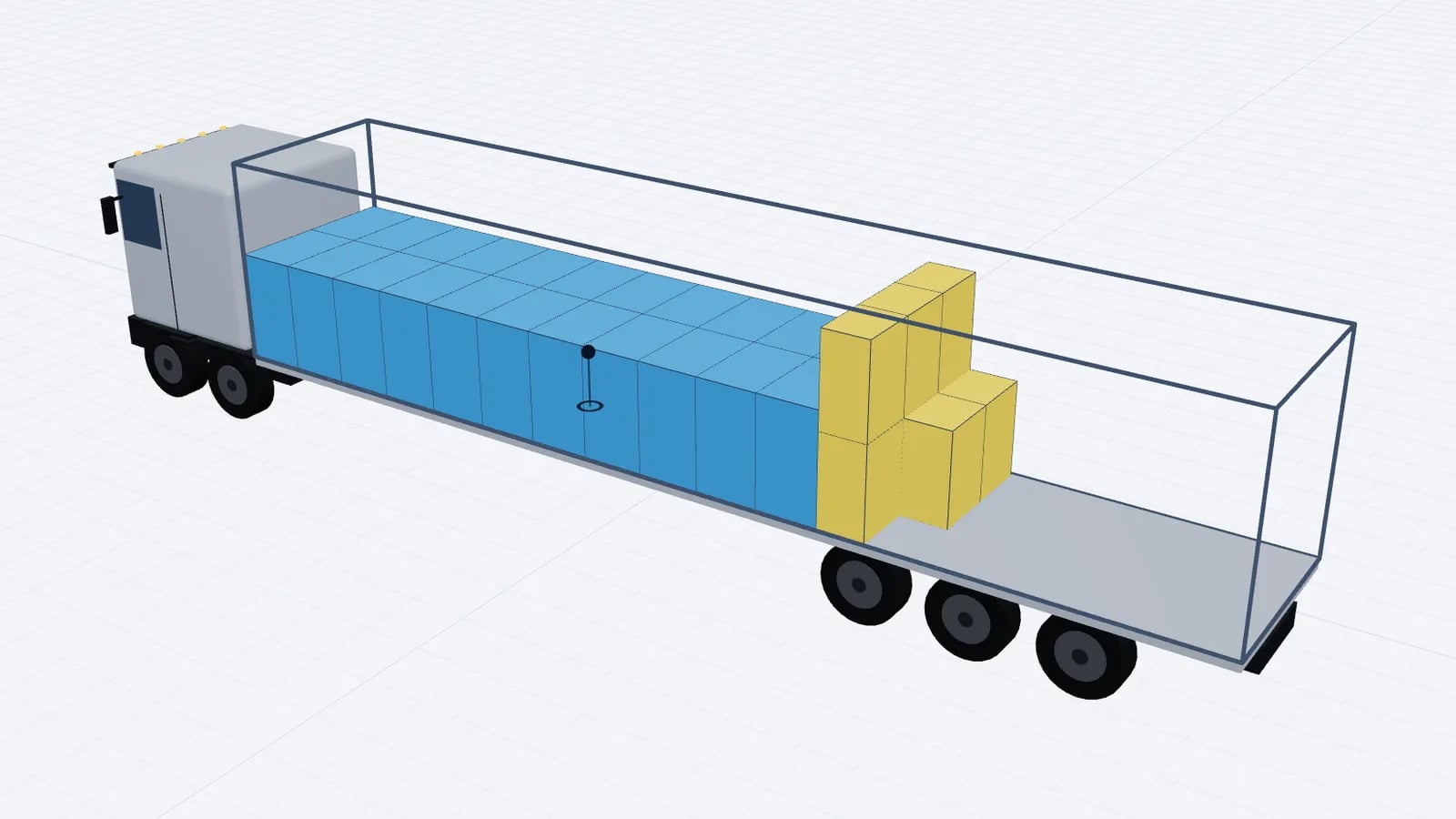
Load planning software integration means your ERP, WMS or TMS sends order lines and the vehicle to the planner and gets back where every item goes, without anyone retyping data. There are two practical routes: a file export from your system that a planner imports, which needs no development, and a REST API that your system calls directly. Start with files to prove the data is right, then move to the API when volume justifies the development work.
This article explains what data flows in each direction, how the two routes compare, and how to build an integration step by step. Where it describes EveryLoading, it sticks to what exists today: a REST API and CSV/XLSX import, not ready-made connectors for specific ERP or TMS products.
What data flows, and in which direction
The data a load planner needs is small and well defined. Most of the work is finding it in your systems and making sure it is correct.
Direction: To the planner
- Data
- Loading space: inside length, width, height, maximum payload, loading side
- Usually comes from
- TMS (vehicle or equipment master)
Direction: To the planner
- Data
- Items: id, name, length, width, height, weight, quantity
- Usually comes from
- ERP item master and order lines, or WMS picked handling units
Direction: To the planner
- Data
- Rules: stackable, floor only, rotation, maximum weight or loads on top
- Usually comes from
- ERP item master (often missing, add them)
Direction: To the planner
- Data
- Delivery stop per item
- Usually comes from
- TMS or route planner
Direction: Back to your system
- Data
- Placement of every item: x, y, z position, size as placed, orientation
- Usually comes from
- Planner result
Direction: Back to your system
- Data
- Volume utilisation, total weight, items that did not fit
- Usually comes from
- Planner result
Direction: Back to your system
- Data
- Centre of gravity, and per vehicle when several are used
- Usually comes from
- Planner result
| Direction | Data | Usually comes from |
|---|---|---|
| To the planner | Loading space: inside length, width, height, maximum payload, loading side | TMS (vehicle or equipment master) |
| To the planner | Items: id, name, length, width, height, weight, quantity | ERP item master and order lines, or WMS picked handling units |
| To the planner | Rules: stackable, floor only, rotation, maximum weight or loads on top | ERP item master (often missing, add them) |
| To the planner | Delivery stop per item | TMS or route planner |
| Back to your system | Placement of every item: x, y, z position, size as placed, orientation | Planner result |
| Back to your system | Volume utilisation, total weight, items that did not fit | Planner result |
| Back to your system | Centre of gravity, and per vehicle when several are used | Planner result |
The weak spot is nearly always the item master. ERPs store sales units and weights, but not always the dimensions of the shipped handling unit, and almost never stacking rules. Fix that before writing any code; our guide to preparing a packing list for load planning lists the usual errors.
Route 1: file export and import
Most ERP and WMS systems can export an order or a shipment as CSV or Excel. The planner imports that file, the planner user optimises, adjusts and shares the plan. No developer is needed, and it is the fastest way to find out whether your data is good enough to automate.
In EveryLoading you can paste rows from Excel into the cargo table on any account, and Pro imports CSV and XLSX files with one item per row; the cargo tab has a template to download. See importing cargo for the columns. Set up a saved export (a report or query) in your ERP that produces those columns in that order, and the daily step becomes: export, import, optimise.
Good to know
The file route works in one direction. EveryLoading does not currently export a load plan as CSV or Excel; plans leave the planner as a PDF or a read-only share link. If you need the placements back in your own system, use the API.
Route 2: the REST API
With an API, your system sends the request and stores the answer. A TMS can check that an order fits the planned truck before confirming it; an ERP can estimate how many vehicles or containers an order needs as soon as it is entered; a WMS can turn picked order lines into a plan for the dock. The integrations overview describes these cases.
EveryLoading offers one REST API with JSON requests and responses, available to Pro accounts. Keys are created in the Developer portal and sent in the X-API-Key header. There are two endpoints:
- POST /api/v1/optimize: send the loading space (length, width, height in cm, maxWeight in kg, optional loadingDirection), the items (size, weight, quantity, and optional stackable, floorOnly, rotationMode, shape, maxStackWeight, maxLoadsOnTop, standOn, stop) and optional settings such as sortStrategy. You get back placements, utilization, totalWeight, unplacedItems and the centre of gravity, plus a vehicles list when several vehicles or a truck-and-trailer set are used.
- GET /api/v1/presets: standard loading spaces (20 ft and 40 ft containers, 40 ft high cube, Euro and mega trailer) with inside dimensions and payload. You can always send your own dimensions instead.
The API uses centimetres and kilograms. Positions are the corner of each item nearest the origin of the loading space. An optimisation request is calculated and returned, not saved as a plan, and PDFs and share links are made in the planner, not through the API. The Developer portal has the full field reference and examples in cURL, JavaScript and Python. For high volumes or several connected systems, the Enterprise plan is meant for that.
Files or API: which to choose
Development needed
- File import
- None; a saved export in your system
- REST API
- Yes; a small service or script
Who runs the plan
- File import
- A planner in the browser
- REST API
- Your system, automatically
Result goes to
- File import
- The planner user, then PDF or share link
- REST API
- Your system, as data
Manual adjustment
- File import
- Yes, in 3D
- REST API
- No; adjust in the planner if needed
Good for
- File import
- Daily planning by a team, starting out
- REST API
- High volume, fit checks at order entry, quoting
| File import | REST API | |
|---|---|---|
| Development needed | None; a saved export in your system | Yes; a small service or script |
| Who runs the plan | A planner in the browser | Your system, automatically |
| Result goes to | The planner user, then PDF or share link | Your system, as data |
| Manual adjustment | Yes, in 3D | No; adjust in the planner if needed |
| Good for | Daily planning by a team, starting out | High volume, fit checks at order entry, quoting |
Many teams use both: the API answers the quick question ("how many trucks?") inside the order system, and planners build the final, adjusted plan in the browser for the dock.
Step by step: building an API integration
- 1Define the trigger. When should a plan be calculated: order entry, order release to the warehouse, or truck booking? Pick one to start.
- 2Map the fields. List where each request field lives in your system: vehicle dimensions in the TMS, item dimensions in the ERP, stop from the route. Decide what to do when a value is missing (block the request, or use a default and flag it).
- 3Convert units. Send centimetres and kilograms. If your master data is in millimetres, metres or pounds, convert in one place in your code.
- 4Group lines. Send identical handling units as one item with a quantity, keyed by a stable id such as the SKU or handling-unit type.
- 5Call the API with a Pro key from the Developer portal, using a test order you have already planned by hand in the browser.
- 6Compare the result with the hand plan: same items placed, similar utilisation, nothing in unplacedItems that should fit.
- 7Store what you need. Usually utilisation, total weight, the list of unplaced items and the number of vehicles; keep the full placements only if your system will display or print them.
- 8Handle "did not fit". Decide the action: a warning to the planner, a second vehicle (send settings for several vehicles), or a hold on the order.
- 9Go live on one flow, watch it for two weeks, then extend.
Tip
Keep the API key on your server, never in a web page or a spreadsheet that leaves the company. If a key leaks, revoke it in the Developer portal; it stops working immediately and you can create a new one.
A worked field mapping
A distributor’s ERP exports an order of 22 Euro pallets of drinks and 8 half pallets of snacks to one customer. The integration maps it like this:
ERP field: Truck type (TMS)
- Value
- Semi-trailer 1,360 × 245 × 270 cm, 24,000 kg
- API field
- container.length / width / height / maxWeight
ERP field: Item number
- Value
- DRK-EUR
- API field
- id
ERP field: Description
- Value
- Drinks, Euro pallet
- API field
- name
ERP field: Pallet size (mm)
- Value
- 1200 × 800 × 1450
- API field
- length 120, width 80, height 145
ERP field: Gross weight
- Value
- 780 kg
- API field
- weight 780
ERP field: Order quantity
- Value
- 22
- API field
- quantity 22
ERP field: Stacking flag
- Value
- No
- API field
- stackable false
ERP field: Item number
- Value
- SNK-HALF
- API field
- id, with length 80, width 60, height 120, weight 160, quantity 8, stackable
| ERP field | Value | API field |
|---|---|---|
| Truck type (TMS) | Semi-trailer 1,360 × 245 × 270 cm, 24,000 kg | container.length / width / height / maxWeight |
| Item number | DRK-EUR | id |
| Description | Drinks, Euro pallet | name |
| Pallet size (mm) | 1200 × 800 × 1450 | length 120, width 80, height 145 |
| Gross weight | 780 kg | weight 780 |
| Order quantity | 22 | quantity 22 |
| Stacking flag | No | stackable false |
| Item number | SNK-HALF | id, with length 80, width 60, height 120, weight 160, quantity 8, stackable |
Weight check: 22 × 780 + 8 × 160 = 17,160 + 1,280 = 18,440 kg, inside the 24,000 kg payload. Floor check: a 13.6 m semi-trailer takes 33 Euro pallets in one layer, so 22 Euro pallets and 8 half pallets (each half the footprint, four pallet places) need about 26 places. The response should show everything placed and no unplacedItems; if it does not, look at the data before the algorithm.
Before you start
Get the manual process working first. A team that already plans in the browser knows which rules matter and which master data is wrong, and that knowledge is what makes the integration correct. Our 30-day implementation plan covers that stage, and the load planning software ROI article helps you decide whether development time is worth it for your volume. For a picture of the full process on road loads, see the road transport use case.
Frequently asked questions
Does EveryLoading have a ready-made SAP or TMS connector?
No. It offers a REST API that any system able to send an HTTP request can call, and CSV/XLSX import for teams that prefer files. Ready-made connectors are on the roadmap, not available today.
Which API plan do I need?
Any Pro account can create API keys in the Developer portal. For high volumes, several connected systems or a custom agreement, Enterprise is the right choice.
Can the API return a PDF of the load plan?
Not at present. The API returns placement data in JSON; PDFs and share links are created in the browser planner.
Is cargo data sent to the API stored?
An optimisation request is calculated and the result returned without saving the cargo as a plan. Only how often each key is used is recorded.
Keep reading
Operations & software · · 7 min read
Load Planning Software Implementation: A 30-Day Plan
A 30-day load planning software implementation plan: vehicle and cargo master data, pilot loads, training for planners and the dock, and how to measure results.
Read article
Operations & software · · 7 min read
Booking Cargo Space: Pallet Places, LDM, CBM and Weight
How to work out and book cargo space with a carrier or forwarder: pallet places, LDM, CBM, chargeable weight, and what the booking needs to avoid re-quotes.
Read article
Operations & software · · 7 min read
Cargo Loading Software for Freight Forwarders
How freight forwarders use cargo loading software for quoting, consolidation, LCL and groupage, choosing containers and sharing load plans with shippers.
Read article