Stacking, rotation and shape
Tell the optimizer which way up items go and what can go on top.
Open the settings of a row with the ⋮ button at the end of it. The settings apply to every piece in that row.
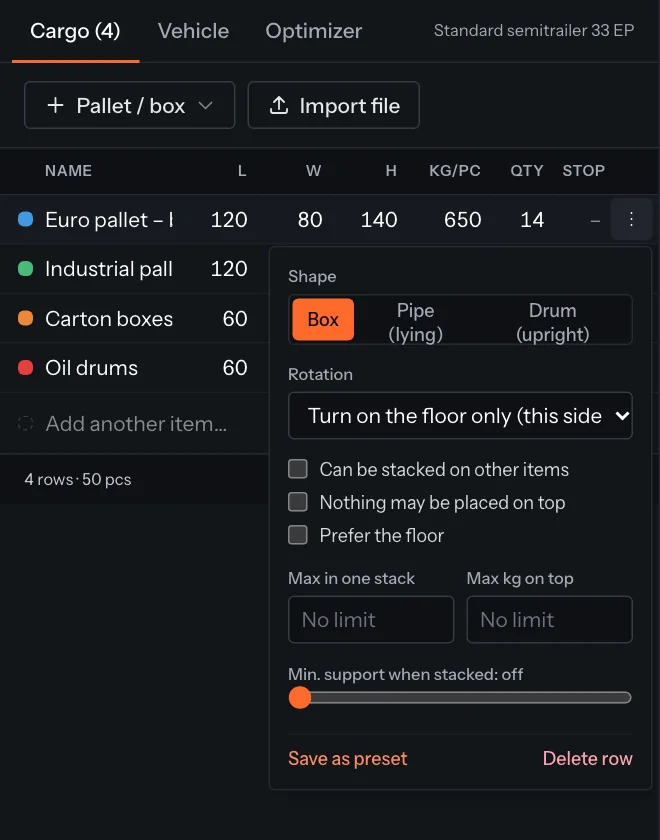
| Setting | What it does |
|---|---|
| Shape | Box, Pipe (lying) or Drum (upright). Pipes and drums are drawn round; they still take up their full rectangular space. |
| Rotation | Turn on the floor only (this side up) keeps the top on top. Any orientation lets the optimizer tip items on their side. Keep as entered never turns them. |
| Can be stacked on other items | On by default. Off: the item always stands on the floor and is never put on top of another item. Other items may still go on top of it. |
| Nothing may be placed on top | For fragile goods or uneven tops: nothing is stacked on this item. The item itself may still sit on others. |
| Prefer the floor | The optimizer puts these on the floor first and only stacks them when the floor is full. Unlike switching off Can be stacked on other items, it may still stack them. |
| Max in one stack | How many of this item may be stacked on top of each other. |
| Max kg on top | The most weight that may rest on one piece. |
| Min. support when stacked | How much of the item's base must rest on the item below (50–100 %). Off by default. |
| Max items on top | The most items of any kind that may be stacked above this one, counting the whole pile. Max kg on top also counts the whole pile. |
| May stand on | Tick the items this one may be stacked on, for example cartons only on pallets of the same kind. With none ticked it may stand on any item. It may always stand on the floor. |
| Built pallet | A row made by Build pallets: its name lists the cartons on it and the 3D view draws the pallet under them. It is not stacked on by default (switch off Nothing may be placed on top to allow it). |
| Stacking pattern | Pipes and drums only. Straight stacks them in columns. Honeycomb nests each row in the gaps of the row below: pipes lie lower and steadier, and drums take less floor when the rows are long enough (otherwise they stand straight). In the 3D view a nested row is drawn where it really lies. |
Tip
To stop all rotation for the whole plan, use Never rotate items in the Optimizer tab.
Build pallets from cartons
- 1In the Cargo tab, click Build pallets (Pro).
- 2Tick the carton rows to stack, choose the pallet (Euro pallet 120 × 80, industrial, half or a custom size) and set Max height (with pallet), Max load and the empty pallet's height and weight.
- 3Click Build pallets. The cartons are stacked with their own settings (rotation, stacking, support), pallet by pallet. Pallets with exactly the same cartons become one row with a quantity; cartons that fit on no pallet stay in the list.
- 4Click Optimize load to load the pallets.
Something unclear or out of date? Tell us and we'll fix the page.