Choose a vehicle or container
Pick a truck, sea container, air ULD or pallet, or enter your own size.
- 1Open the Loading space tab in the left panel.
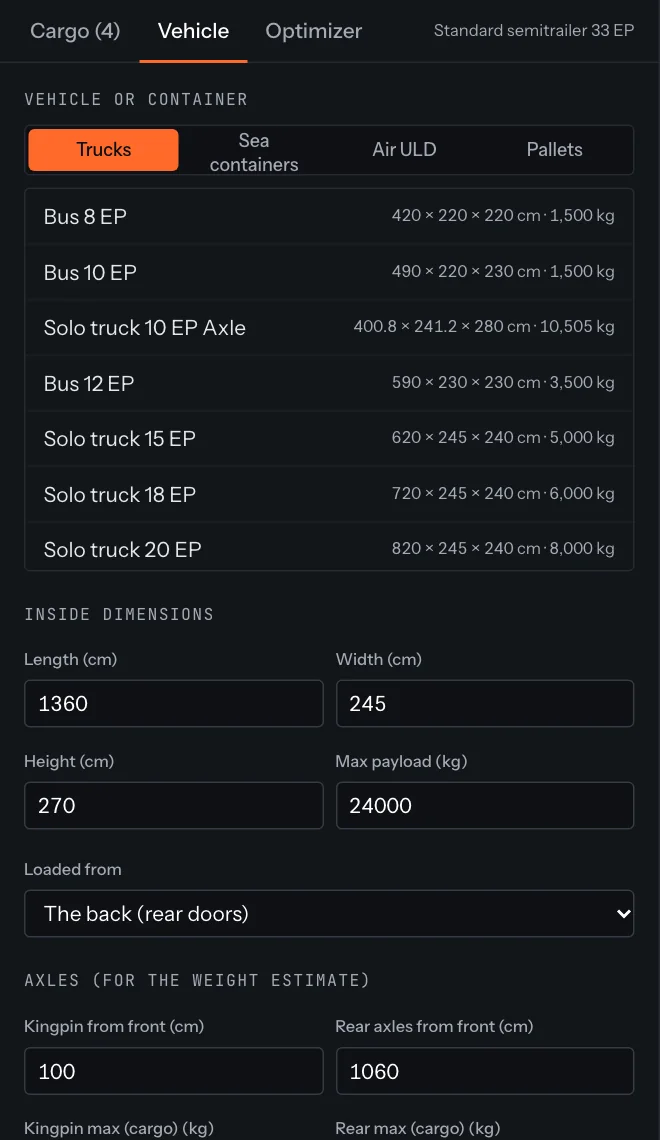
- 2Pick a group: Trucks, Sea containers, Air ULD or Pallets.
- 3Choose the vehicle or container from the list. Its inside length, width, height and maximum payload fill in automatically.
Your own size
Under Inside dimensions, change Length, Width, Height or Max payload. The vehicle switches to Custom. Use the inside measurements of the load space, not the outside of the vehicle.
Good to know
Changing the vehicle size clears the current arrangement, because items may no longer fit where they were. Your cargo list stays. Click Optimize load again.
Which side it is loaded from
Under Loaded from, choose The back (rear doors), The right side or The left side. The optimizer fills from the far end towards that side, and the loading sequence follows it.
Axles
Under Axles (for the weight estimate) you can enter where the kingpin or front axle and the rear axles are, measured from the front of the load space, and the maximum cargo load on each. Typical values are filled in for every truck preset. See Weight, axle loads and centre of gravity.
Vehicle details
Under Vehicle details, click Add next to a part your vehicle has. Typical sizes fill in; change them to your vehicle's. Remove takes the part out again. The optimizer works around each part, and dragging an item into one is refused.
| Part | What the optimizer does |
|---|---|
| Wheel arches | Two wheel boxes on the floor, one against each side wall, starting From front cm from the front wall. Nothing is placed where they are; items may rest on top of them. |
| Cooling unit | The fridge unit against the front wall, centred across the width. Full width right under the roof by default; set Width and Above floor if yours is smaller or lower. The space it takes stays empty. |
| Door opening | Every item must pass through the door. Items wider or taller than it are turned to fit through when their rotation allows, or left out. |
| Centre of gravity limit | How far the centre of gravity may be from the middle of the loading space, along the length and across the width. The optimizer prefers plans within the limit, trades heavy and light items of the same size between the ends and the middle, and moves the whole load towards the middle; when it still can't get within, the stats show a warning. |
| Variofloor (double deck) | A second floor across the whole loading space at Deck height. Cargo goes under it and onto it, items that must stand on the floor may stand on the deck, and Max on deck limits the weight on the upper floor. Dragging keeps an item on its level. |
| Trailer (truck + trailer set) | A drawbar trailer behind the truck, with its own size and payload (Pro). The optimizer fills the truck first, then the trailer; each has its own tab, and the PDF a page set each. With Use more trucks if it doesn't fit, whole sets are added. |
Which vehicle do I need?
Under Vehicles that take this cargo, click Suggest a vehicle (Pro). Your cargo is packed into every vehicle of the current kind, and the list shows the ones that take it all, fewest vehicles and least spare space first, with how full they are. Use picks that vehicle (and several trucks when needed) and optimizes.
Something unclear or out of date? Tell us and we'll fix the page.