How to Make a Load Plan: From Packing List to Sign-Off
How to make a load plan step by step: check the packing list, choose the vehicle, set stacking rules, optimise, check weight and axles, hand it to the dock.
Operations & software · · 5 min read
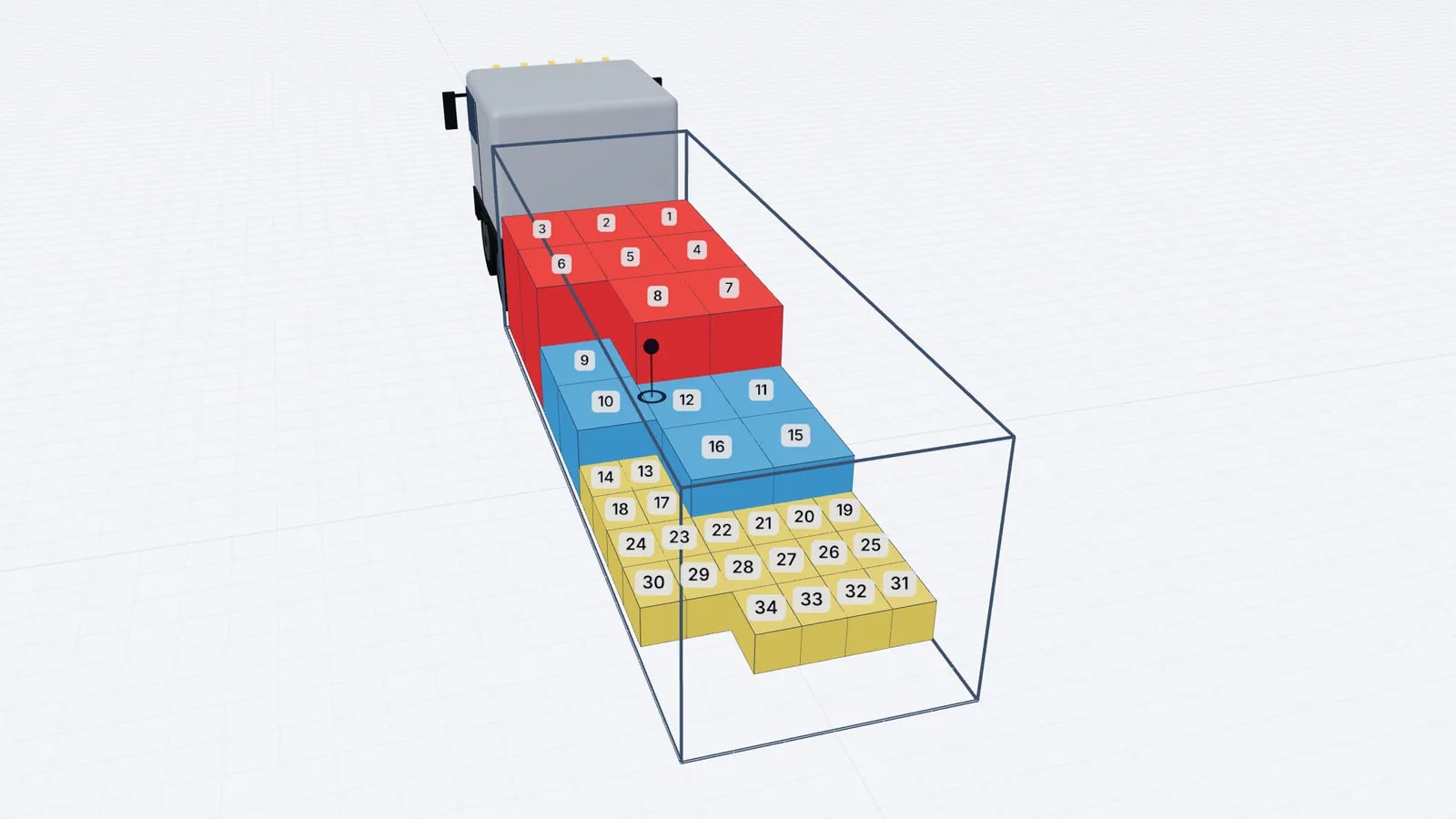
To make a load plan, start from an accurate packing list (size and weight per piece, quantity, handling rules), choose the vehicle by its inside dimensions and payload, arrange the cargo heavy and large items first on the floor, check weight, axle loads and balance, then fix the loading order and hand the plan to the dock. The steps below follow that order and use a worked example you can reproduce.
The process is the same with any tool. Where a how-to helps, we use EveryLoading and link to the relevant manual page. For what a finished plan should contain, see load plan template.
Step 1: Check the packing list
Most bad plans start with bad data. Before planning, make sure every line has length, width and height of one piece in one unit, the weight of one piece (not the line total), the quantity, and any handling notes such as "do not stack" or "this side up". If the load is multi-drop, add the delivery stop to each line.
Our example: a hypothetical outbound load for two customers.
Item: Euro pallet, tinned food
- L × W × H (cm)
- 120 × 80 × 120
- kg per piece
- 720
- Qty
- 14
- Stop
- 2
- Notes
- Max 2 in one stack
Item: Euro pallet, paper goods
- L × W × H (cm)
- 120 × 80 × 160
- kg per piece
- 260
- Qty
- 10
- Stop
- 1
- Notes
- Not stackable
Item: Industrial pallet, detergent
- L × W × H (cm)
- 120 × 100 × 110
- kg per piece
- 640
- Qty
- 4
- Stop
- 1
- Notes
- Stackable
Item: Carton, glassware
- L × W × H (cm)
- 60 × 40 × 40
- kg per piece
- 12
- Qty
- 20
- Stop
- 1
- Notes
- Nothing on top
| Item | L × W × H (cm) | kg per piece | Qty | Stop | Notes |
|---|---|---|---|---|---|
| Euro pallet, tinned food | 120 × 80 × 120 | 720 | 14 | 2 | Max 2 in one stack |
| Euro pallet, paper goods | 120 × 80 × 160 | 260 | 10 | 1 | Not stackable |
| Industrial pallet, detergent | 120 × 100 × 110 | 640 | 4 | 1 | Stackable |
| Carton, glassware | 60 × 40 × 40 | 12 | 20 | 1 | Nothing on top |
Totals: 14 × 720 = 10,080 kg; 10 × 260 = 2,600 kg; 4 × 640 = 2,560 kg; 20 × 12 = 240 kg. That is 15,480 kg. Check this before you choose a vehicle: it rules out a typical 7.5 t or 12 t rigid straight away. Packing list to load plan covers cleaning the data in more depth.
Step 2: Choose the vehicle
Work from inside dimensions and payload. A standard 13.6 m semitrailer is about 13.6 × 2.45 × 2.7 m inside with a payload often around 24 t, depending on the tractor and trailer. Our load needs floor space for 24 Euro pallets (24 × 0.4 = 9.6 loading metres) and 4 industrial pallets (4 × 0.5 = 2.0 LDM), plus a little for the cartons: about 12 LDM if nothing is stacked. A standard trailer fits with room to spare; a smaller rigid would not.
In EveryLoading, open the Loading space tab, choose the group and the preset, and check that inside size and payload match your actual equipment (vehicle guide). Set which side it is loaded from: rear doors for a container or box trailer, side for a curtainsider loaded by forklift from the side.
Step 3: Enter the cargo and its rules
- 1Paste the packing list rows into the cargo table, or type them (paste or import).
- 2Enter a stop number per row: 1 for the first drop, 2 for the second.
- 3Open each row’s settings and set the rules: paper goods not stackable, glassware with nothing on top, tinned food with max 2 in one stack (stacking and rotation).
- 4Keep rotation to "turn on the floor only" for pallets so nothing is tipped on its side.
Step 4: Optimise and review the arrangement
Click Optimize load. The optimiser fills from the front wall towards the doors, keeps the load level across the width and places later stops deeper. Then review it as a loader would. Are the pallets in clean lanes? Is anything left under Not loaded? Are the glassware cartons on top of something solid and not sandwiched? Move items by hand where your crew would load differently (move items).
In the example, stop 2 (tinned food, the heaviest goods) ends up at the front of the trailer and stop 1 behind it towards the doors. That is right for unloading order, and it also puts the heaviest pallets over the front of the trailer. That leads to the next check.
Step 5: Check weight, axles and balance
Gross weight under payload is not enough. Look at the axle estimate and the centre of gravity marker (weight guide). With 10 t of tinned food in the front 6 metres, the kingpin load may approach the tractor’s limit. If you get a warning, options are: spread the tinned food over more length (for example two pallets across instead of three in some rows, so the heavy block reaches further back), leave a gap at the front wall and block it securely if the stops allow, or split the load. Note that double-stacking the heavy pallets would make things worse here: they would take less length and their weight would move even further forward. Background: weight distribution in a trailer.
Good to know
Software axle figures are estimates from the cargo only. They do not include the tractor, fuel or driver. When you are near a limit, weigh the vehicle.
Step 6: Fix the loading order and hand over
The plan is done when the dock can follow it without asking questions. Use the loading sequence to check the order item by item, then produce the document: a PDF with the summary, manifest, step-by-step sequence and top/side/rear drawings, or a read-only link the loader can open on a phone (PDF and share links).
- Stage the pallets in loading order before the truck arrives (loading dock efficiency).
- Print the stop colours or numbers so the driver can see what comes off first.
- Note any securing requirements: straps, anti-slip mats, blocking at the rear.
Step 7: Sign off and learn from it
A sign-off can be as simple as the loader initialling the printed plan and noting deviations. Those notes are valuable: if the same load is always built differently from the plan, fix the rules (a "do not stack" that was missing, a pallet height that is wrong in the master data) so next week’s plan is right first time. Save recurring loads and reuse them.
Tip
Ask the loader to photograph the finished load at the doors. Comparing the photo with the rear view of the plan takes seconds and catches most mistakes.
Frequently asked questions
What information do I need to make a load plan?
Size and weight of one piece, quantity, stacking and rotation rules for each item, the delivery stop if there are several, and the vehicle’s inside dimensions and payload.
Should heavy items go at the front of the trailer?
Heavy items go on the floor and should be spread so axle loads stay within limits. Putting all the heavy goods hard against the front wall can overload the kingpin or drive axle, so check the axle estimate.
How do multiple delivery stops change the plan?
Goods for the last stop go in first, deepest in the vehicle, and goods for the first stop go nearest the doors, so nothing has to be moved to unload a drop.
Who should sign off a load plan?
Usually the planner issues it and the loader or shift lead confirms it was loaded as planned, noting any changes. Your load securing responsibilities still apply regardless of the plan.
Keep reading
Operations & software · · 5 min read
Loading Plan for Drivers: What the Paper and the Link Need
What drivers and the warehouse need in a loading plan: manifest, loading sequence, top/side/rear drawings, stop order and weights, on paper or a phone link.
Read article
Operations & software · · 5 min read
Load Planning in Excel vs a 3D Planner: When to Switch
Where load planning in Excel works, where it breaks (stacking, mixed sizes, axles, sequence) and how to keep your spreadsheet as input for a 3D planner.
Read article
Operations & software · · 4 min read
Goodloading Alternative: What to Compare Before Switching
Looking for a Goodloading alternative? What to compare when switching load planners: trial, file import, sequence, multi-stop, axles, vehicles and cost.
Read article